In this video I will show you how to make Profession Presentation in PowerPoint software.
With the good presentation you can explain your ideas to your viewer easy. So today I will present to you how to make it. To make this business presentation first you need open the PowerPoint software.
Then choose the insert menu, then click shapes and choose block arc. Then click mouse and draw a block arc.
then resize it, and change color, choose no outline and rotate it.
Then copy, paste, and rotate. Make a group shapes like this:
Draw a circle, resize and change color to yellow. And one more concentric circle with yellow circle.
Resize smaller than yellow color and change to grey color.
Then select this circle shapes, copy and paste to many part. Change color of each group if you want.
go to insert menu, click shapes and choose triangle to draw a triangle. Click and drag mouse to draw.
Then you should resize it, change color and make this shape send to back of all shape.
With other circle shape, use the same steps with yellow circle.
Add some shadow effects, text and some icons for each circle shape like this
Ok, Now I will add animation for this presentation. Go to Animation tab, choose shape you want animation and click add animation, you will see the scroll window appear, choose the effect you like. Set animation duration, direction... Because I think difficult to explain by text, so for more detail and understand, please see this video:
You want to make a professional PowerPoint presentation and make it impressive with your viewer. But don't know the ideas and how to do it. Don't worry, today Enix Tutorial will present you how to make a PowerPoint text animation, this is easy to do, you can make it, and use for your report, business also.
Let's see!
Firt you need open the Microsoft PowerPoint software, then draw a rectangle, change color like this picture.
Choose no shape outline, then import text you want, in this tutorial I type PowerPoint. After that you should change text font, size and color if you want. I just change text font and size. Color of text is black.
You will have the result in below:
Click and hold ctrl choose background shape and text, then go to Format menu, choose merge shapes > subtract.
You will have the shape result like this:
Go to insert menu > shapes > rectangle shape, click and insert 2 shapes, one on front of backgound, and one on back of background.
Then go to Animation tab and add animation for each shapes.
See this video for more detail steps by steps, if you don't understand and have any ideas, please comment in video:
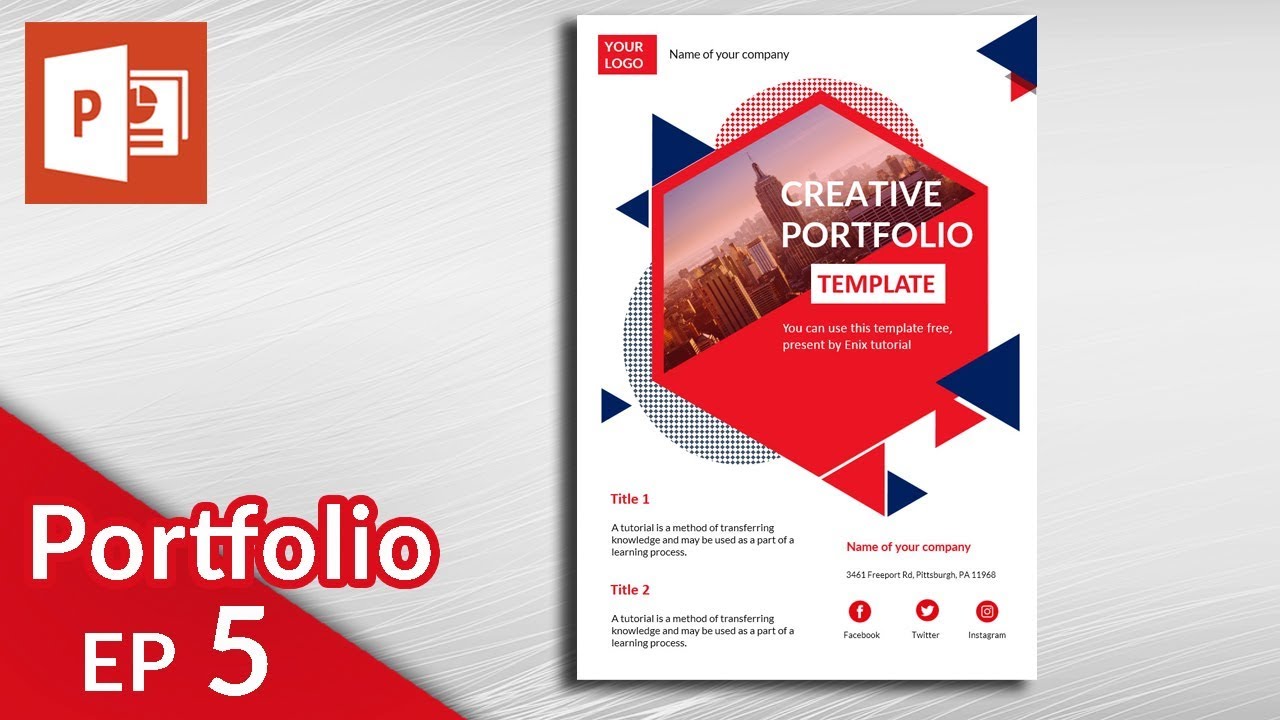
Today we continue learn how to make portfolio series, this is the graphic portfolio design in Microsoft PowerPoint. I will teach you make portfolio in picture below:
Open the PowerPoint software and choose A4 size of paper.
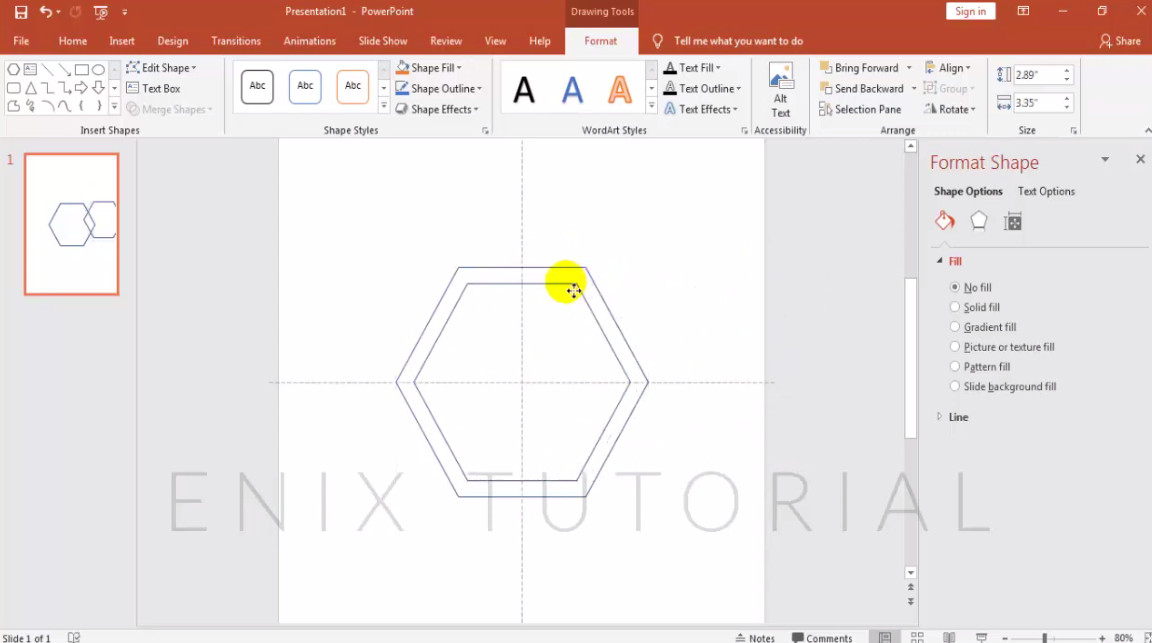
Go to insert menu > shape > hexagon to add shape.
duplicate the shape like this:
Rotate and then right click choose format shape > fill picture. Then choose the picture you want.
Choose the shape and fill red color, then duplicate the shape and adjust the opacity of the hexagon shape to about 20-30 %. Move mouse to insert menu > text box, then type text you want. In this post I type Creative Portfolio.
Select all shape and picture, right click choose group. And draw 2 circle , select them, right click > send to back.
Choose 2 circle shapes and choose fill by pattern :
Add a triangle, choose no shape outline, move to position you want.
Duplicate, resize and move to many triangle like this picture below:
Add some texts and logo if you want.
And some social icons like this:
And this is the result:
You can see this video in below for more easy follow the step.
This video will show you how to make Presentation in Microsoft PowerPoint. The name of topic in this lesson is make presentation about Business. First you need open the PowerPoint software.
Then right click choose format background > choose Gradient fill in the Fill tab.
Add a text and icon like this picture below:
Then create new slide, insert text and some rectangle shapes. Copy and paste shape to duplicate the rectangle shape.
insert text, change color of background..
slide 5: create new slide, then add some icons and text. Change the color, font, size of text if you want.
With other slide, you can do the same steps with the previous slide.
Today I will teach you how to design letterhead in word. First you need open the Microsoft Word software. In this tutorial I use Word 2019. Then you go to Layout menu, choose A4 paper, narrow margins.
go to insert menu, choose shapes and click rectangle shape. Resize and choose color for rectangle.
Select the rectangle, then copy and paste.
Add a triangle like this, choose color and no shape outline.
Select all shapes and right click choose group. Then you move to the position you want.
Repeat this action again from begin. You will have the result in below:
You can add more text by go to insert menu > text box. then type your text you want.