Showing posts with label how to make portfolio. Show all posts

Saturday, December 7, 2019

PowerPoint Tutorial : How to make Portfolio Company easy and professional

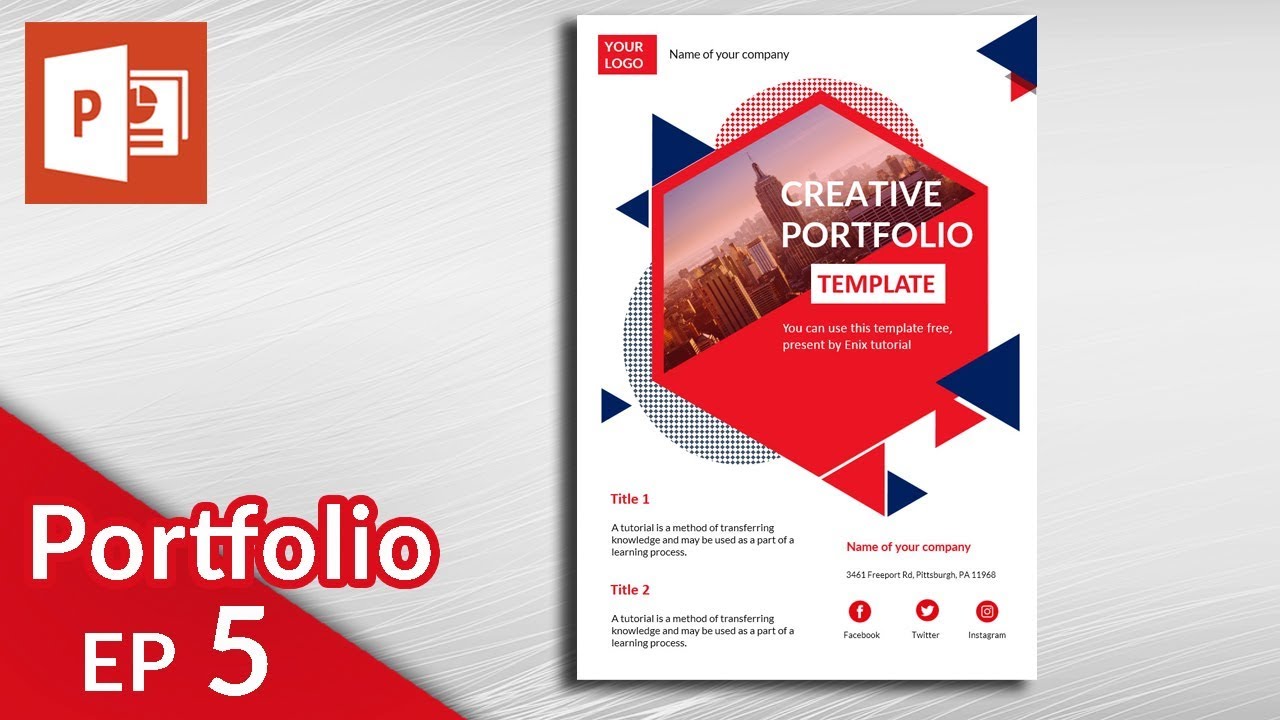
Today we continue learn how to make portfolio series, this is the graphic portfolio design in Microsoft PowerPoint. I will teach you make portfolio in picture below:
portfolio design


Open the PowerPoint software and choose A4 size of paper.

Go to insert menu > shape > hexagon to add shape.
duplicate the shape like this:
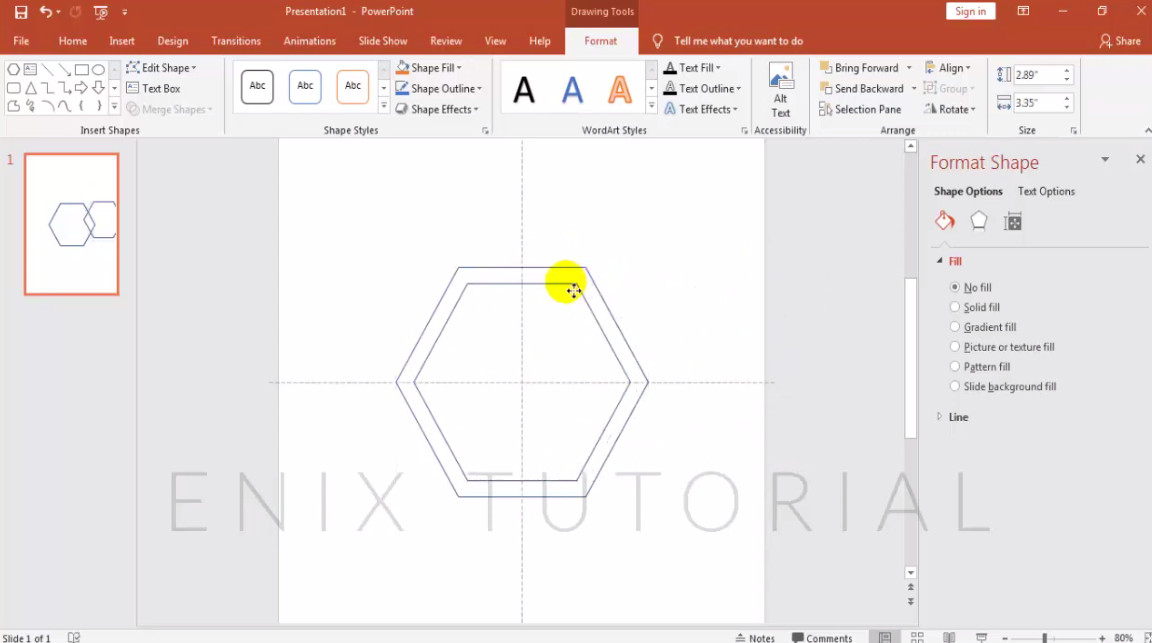
Rotate and then right click choose format shape > fill picture. Then choose the picture you want.

Choose the shape and fill red color, then duplicate the shape and adjust the opacity of the hexagon shape to about 20-30 %. Move mouse to insert menu > text box, then type text you want. In this post I type Creative Portfolio.
Select all shape and picture, right click choose group. And draw 2 circle , select them, right click > send  to back.
Choose 2 circle shapes and choose fill by pattern :

Add a triangle, choose no shape outline, move to position you want.

Duplicate, resize and move to many triangle like this picture below:

Add some texts and logo if you want.

And some social icons like this:

And this is the result:
You can see this video in below for more easy follow the step.

Tuesday, November 26, 2019

How to make Portfolio in Microsoft PowerPoint - Graphic Design Portfolio

Today I will teach you how to make  Portfolio in Microsoft PowerPoint with detail. or you can see this video in the end of this lesson. Now let's start !
portfolio graphic design
Open the Microsoft PowerPoint then choose Design menu, choose Slide Size. A4 and portrait.
Go to insert menu , shapes. Then choose triangle shape. and Click mouse and drag to draw a rectangle.
Add one more triangle, rotate it and move to position like this picture in below.
You need to trim the shapes on out of bolder paper.
In this lesson I will use the merge feature. Go to Insert > shapes > rectangle shape to add one rectangle on top of it like this

After that select the shape you want trim and the rectangle. go to Format menu > Merge shapes > Subtract.
You will see this is the result.
Select all shape and choose red color. And no shape outline.
You can add some shadow for each shape by right click on each shape. Choose format picture > shadow and adjust the shadow. Add picture, go to insert menu, choose pictures and choose the image you want to use.
Right click on this picture and choose send to back. You adjust the picture until look like this:

Add one more rectangle and add text, title.


You can add more text like this
And for more fancy, you can add some icons. In this video I add 3 social icons.

That's all about tutorial how to make a basic portfolio in PowerPoint. I hope after see this tutorial, you can easy to make and bouncing ideas to make a portfolio easy. See more video about PowerPoint Presentation video in my channel. If you want to more easy understand, please see this video in below: